
Get started
Introduction
Read to the camera at your own pace. The text follows your voice.
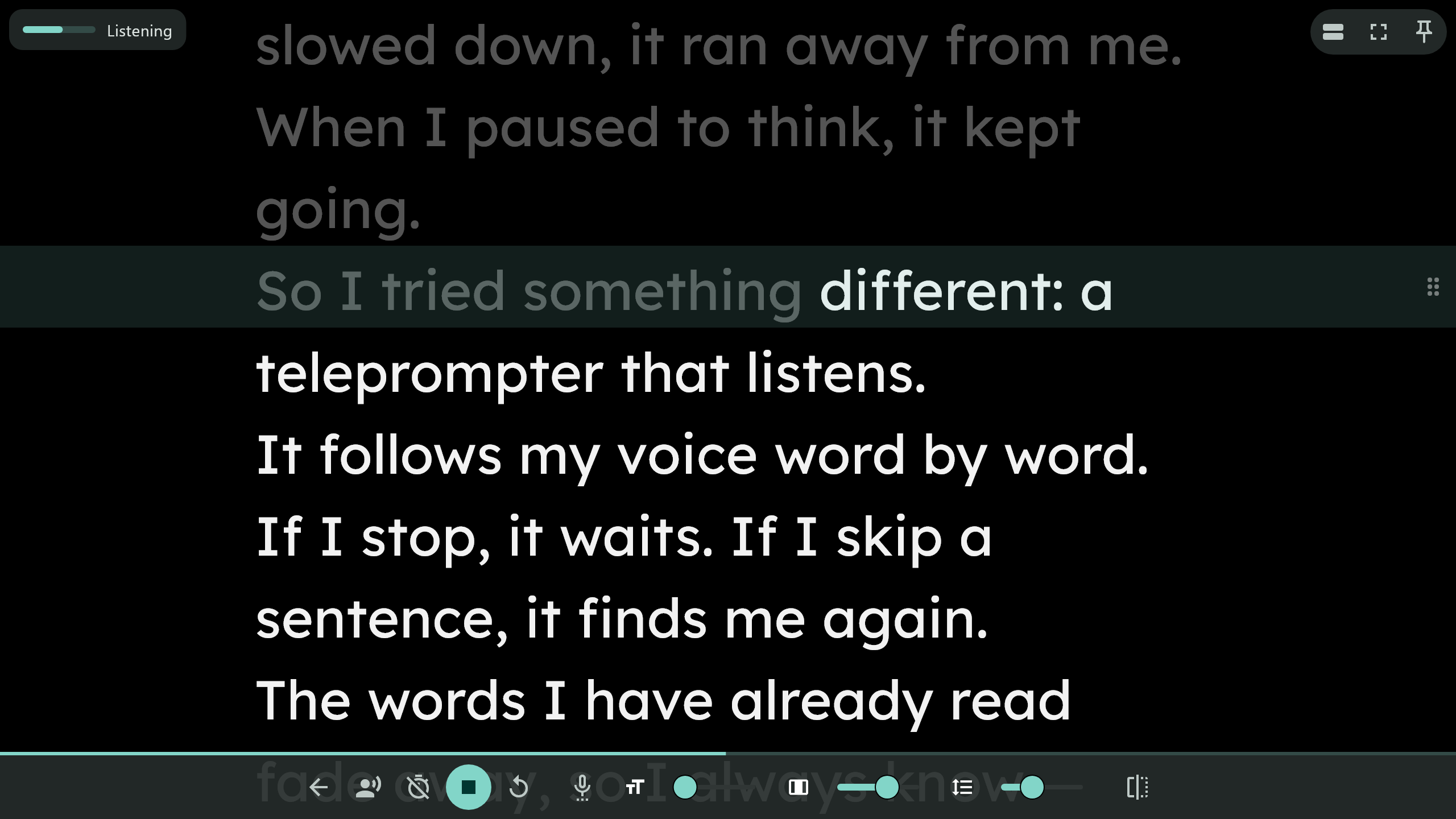
Teleprompter: Voice Scroll listens while you read and keeps the next words at the reading line. Pause, and it waits. Say something that is not in the script, and it ignores it. Skip a sentence or a paragraph, and it finds you again. The words you have read are dimmed, so you always see where you are.
Speech recognition runs on your computer, without internet. What you say is never recorded or sent anywhere.
Download the app
Coming soon to the Microsoft Store.
- For Windows 10 and Windows 11.
- Voice scroll needs a microphone: the laptop's own, a headset or a webcam. Without one, the text can still scroll at a set speed.
- Voice scroll understands English.
- One payment. The Store shows the price in your currency.
- Updates arrive by themselves through the Store.
First steps
Open the Start menu and search for Teleprompter: Voice Scroll. The Quick guide takes you from a text file to reading in a few clicks.
The first time, Windows asks whether the app may use the microphone. Say yes, or voice scroll cannot hear you.
Uninstall
Windows Settings > Apps > Installed apps > Teleprompter: Voice Scroll > Uninstall. Your scripts and settings go with it, so export the scripts you want to keep first.
Quick guide
From a text file to reading with your voice, full screen.
- 1. Import your script. Click the import button above the list of scripts and choose a
.txtfile. You can also type or paste the text.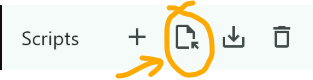
- 2. Open the prompter with the button at the top right, or Esc.

- 3. Go full screen with the button in the top-right corner, or F.

- 4. Adjust the text with the sliders in the panel at the bottom: text size, column width and line spacing.

- 5. Press Space or the play button, wait for the countdown, and read aloud. The text follows you.
- 6. Press Space again to stop, and Esc to go back to the editor.
The panel hides while you read; move the mouse to bring it back. Every other option is in All features.
All features
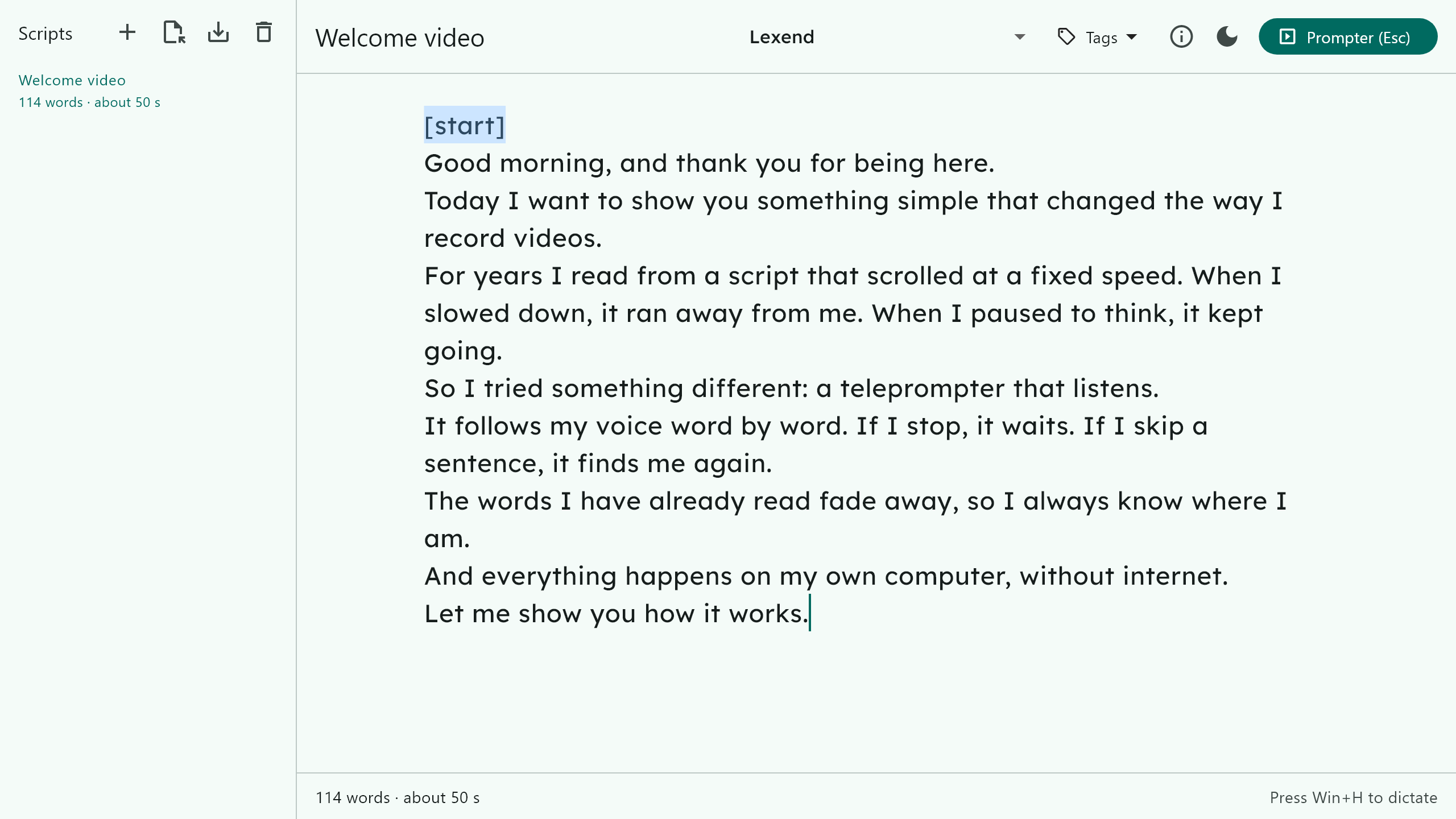
Two screens: the editor, where you write, and the prompter, where you read.
The editor
- Your scripts are listed on the left. They are saved as you type.
- New, import
.txt, export.txtand delete sit above the list. - Choose the reading font at the top. The script shows in it as you write.
- Below the script: how many words it has and about how long it takes to read.
- To dictate instead of typing, press Win+H (Windows voice typing).
- The light or dark theme is switched from the editor.
Tags
Tags are notes for the prompter. They are never read out or shown as text. Add them from the Tags menu, at the cursor.
[start]: the prompter opens here. Move it to practise one part of a long script. There is always exactly one.[speed:100]: from this line on, the text scrolls at this speed (manual mode only).
Reading with your voice
- Voice mode is on unless you switch it off with the mode button.
- Choose the microphone from the microphone button. A small bar shows that it hears you.
- Lost your place? Turn the mouse wheel: reading goes on from the
line at the guide. R goes back to
[start]. - Numbers are understood as you say them: 1984 as "nineteen eighty-four", 25% as "twenty-five percent".
Manual mode
The mode button switches voice off. The text then scrolls at a set
speed: change it with ↑ and ↓, or with
[speed:X] tags in the script.
The prompter's controls
- Countdown: off, 3, 5 or 10 seconds before starting.
- Text size, column width and line spacing: sliders in the panel. The text keeps your place when it reflows.
- Mirror: left-right or up-down, for teleprompter glass.
- The reading guide: drag the dots at its right end to move it up or down. The top-right corner switches between a band and two arrows; drag an arrow toward the text or away from it.
- Full screen and always on top (the pin), also in the top-right corner. On top keeps the prompter above the app that records you: Zoom, OBS or the Camera app.
Keys
Each button shows its key when you hold the mouse over it.
| Key | Does |
|---|---|
| Space | Start or stop |
| Esc | Switch between editor and prompter |
| R | Back to [start] |
| → ← | Larger or smaller text |
| ↑ ↓ | Faster or slower (manual mode) |
| H V | Mirror left-right, up-down |
| F | Full screen |
About it
A teleprompter that listens, so you don't have to bother with any other way of controlling it.
Your voice sets the pace: the text waits during a pause and catches up when you go faster. When you would rather set the speed yourself, manual mode is there too. It was built in 2026 with the help of an AI agent, with speech recognition that runs entirely on your computer.
Made by Alejândro Pu. Visit LookThis.One/apps
Privacy policy: what you say and what you write stay on your computer.