
Get started
Introduction
Become aware of your productive (or enjoyable) hours and gain more control over your day.
Day Clock is a clock made for people who want to be aware of their day. It is especially useful for remote workers, freelancers, entrepreneurs and students, who may lack structure because nothing around them signals where they stand as the day goes on.
Download the app
Day Clock is sold in the Microsoft Store.

- For Windows 10 (version 1809 or later) and Windows 11.
- One payment. The Store shows the price in your currency.
- Updates arrive by themselves through the Store.
First steps
Open the Start menu and search for Day Clock. Then choose Settings… in the ⚙ menu and set the time you wake up (06:30 at first). The Quick guide explains the rest.
Uninstall
Windows Settings > Apps > Installed apps > Day Clock > Uninstall. Your settings go with it.
Quick guide
Set the time you wake up, then read the clock through your working day and your evening.
1. Set your wake-up time
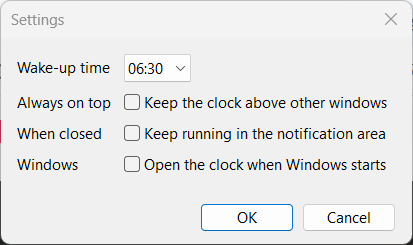
Click the ⚙ in the top-right corner of the clock, choose Settings…, pick your Wake-up time and click OK.
2. Read the time at work
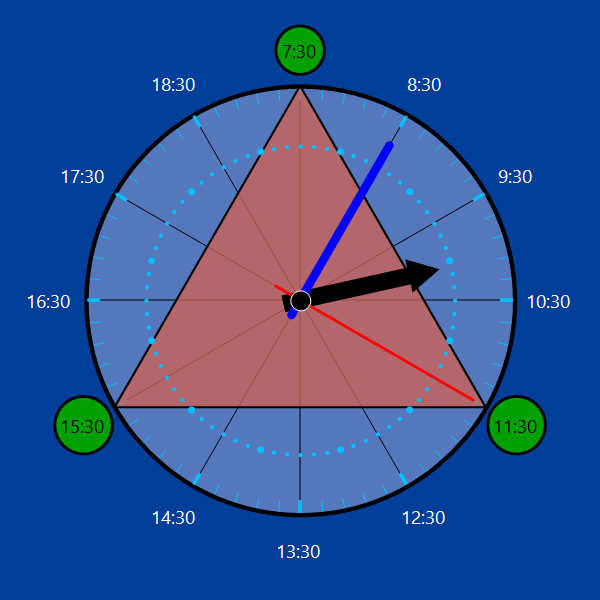
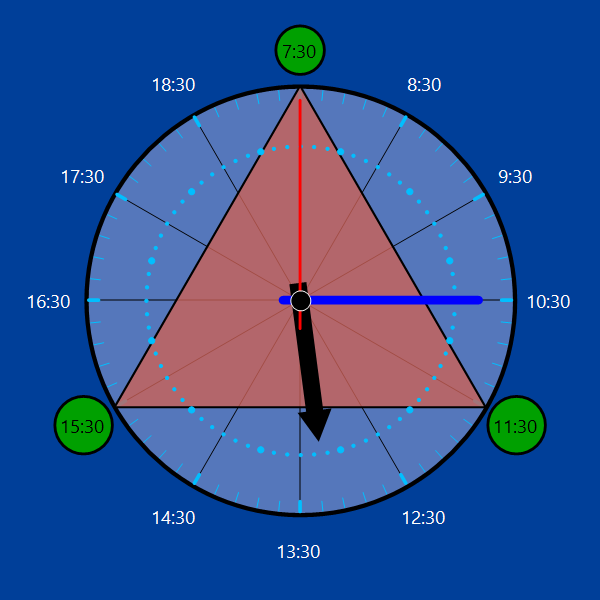
Work lasts 12 hours, in three blocks of 4. The triangle shows them: each corner, in a green circle, is the time a block starts.
The black hand shows the hour, and so the block you are in: it makes one turn in the 12 hours of work, and each number around the dial is one hour. The blue hand shows the minutes, like any clock.
3. Read the time while winding down
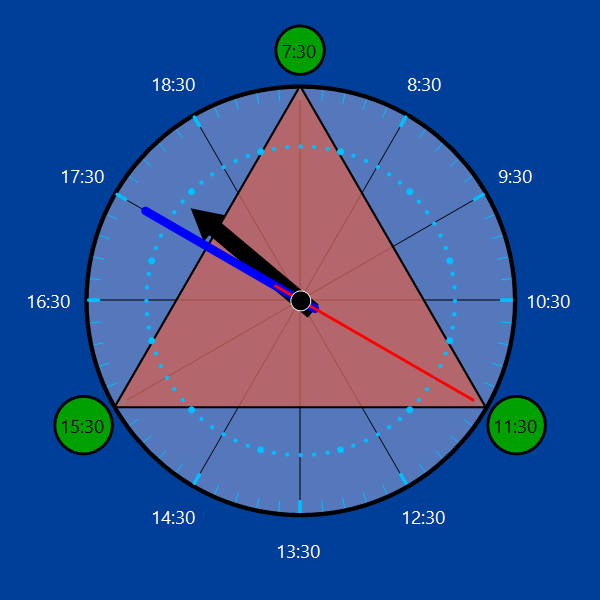
After work, the dial shows the 3 hours before bed, one at each corner of the triangle. The parts of the dial outside the triangle light up one by one: the first when winding down starts, the next at each green circle. A glance tells you how much of the evening is left.
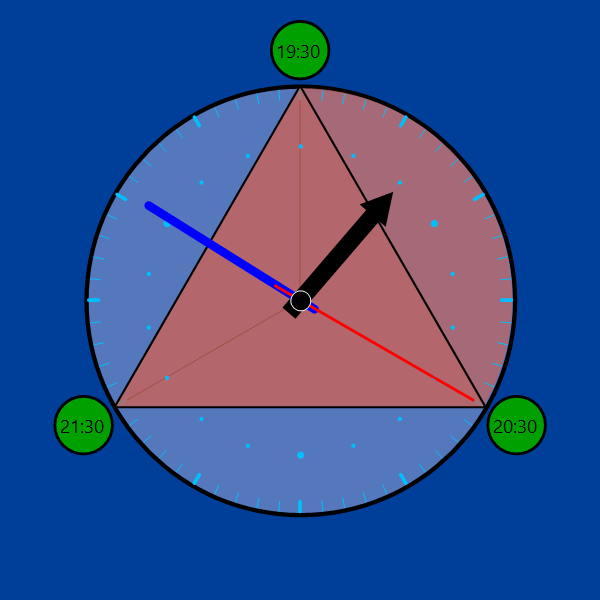
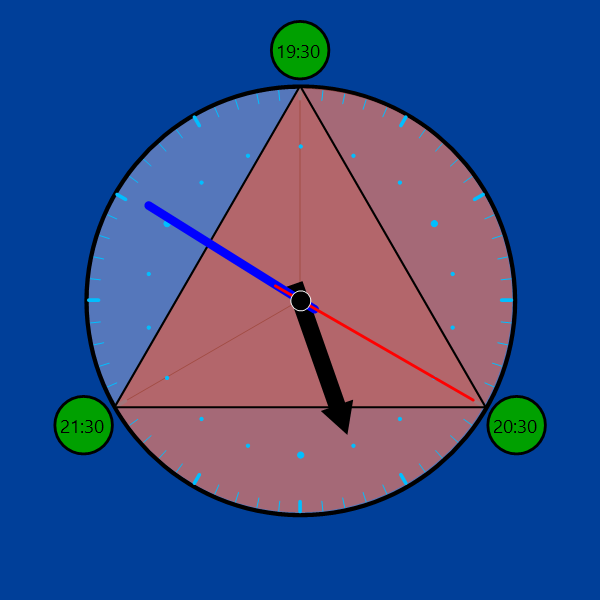
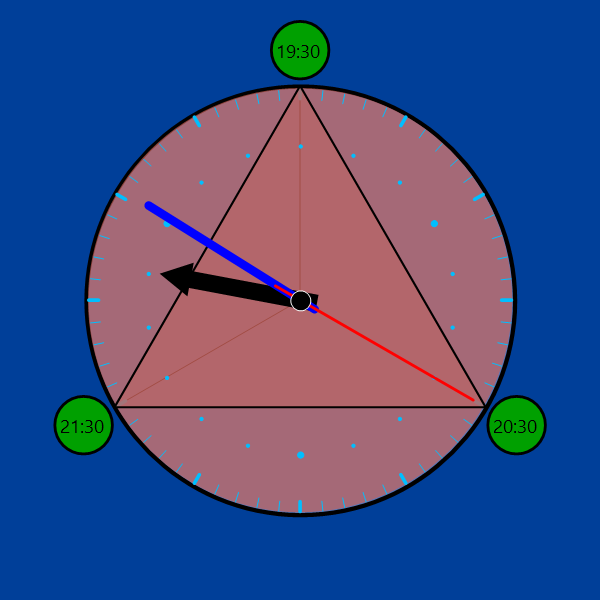
Waking up, sleep, the lap counter, colours and the other settings are in All features.
All features
Day Clock follows your day instead of a 12-hour face. The day starts when you wake up and has four phases. The dial changes with each one.
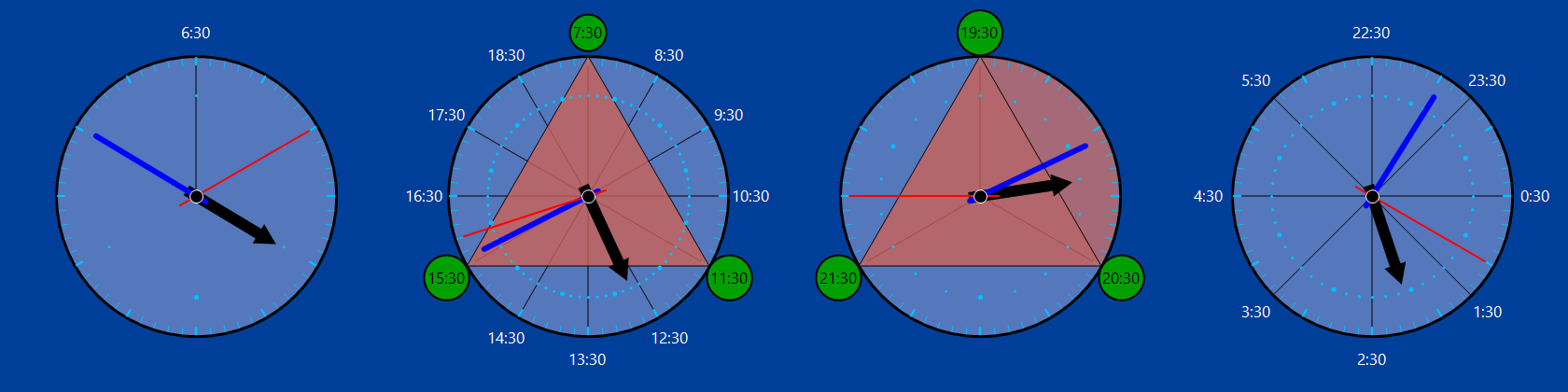
The four phases
With the default wake-up time, 06:30:
| Phase | Hours | The dial shows |
|---|---|---|
| Wake up | 06:30–07:30 | 1 hour |
| Work | 07:30–19:30 | 12 hours, in three 4-hour blocks |
| Wind down | 19:30–22:30 | 3 hours |
| Sleep | 22:30–06:30 | 8 hours. The 8 hours of sleep come first. |
During work, the triangle marks the three blocks: each corner points at the start of a block. While winding down it marks each of the 3 hours, and the parts of the dial outside it light up one by one, the first when the phase starts and the next at each green circle.
Reading the hands
- Black: the hour. It makes one full turn per phase.
- Dots: next to the tip of the hour hand, one every 10 minutes. The bigger dots mark the hour on the dot, such as 11:00.
- Blue: the minutes, like any clock.
- Red: at work, one turn every 15 minutes, so you can see how far into the quarter hour you are. Otherwise, one turn per minute.
Settings
Click the ⚙ in the top-right corner of the clock and choose Settings…:
- Wake-up time: every phase is counted from it, so they all move with it.
- Always on top: keeps the clock above other windows.
- Keep running in the notification area: closing the window leaves the clock running as an icon next to the Windows clock. Click the icon to open it again; right-click it to quit.
- Open the clock when Windows starts: the clock opens by itself when you sign in.
Your settings are remembered the next time you open the clock.
Colours
Choose Customize… in the ⚙ menu to change eleven colours: the hour numbers, the numbers in the small circles, the small circles, the background, the clock face, the dial marks, the triangle, the three hands, and the settings wheel with the lap count. The clock changes as you pick; Cancel puts it back.
Save your colours with Save as theme… and switch between your themes and Default from the list at the top.
Lap counter
During work, click the black pin in the centre of the clock. A red mark appears on the minute ticks, right where the red hand is, and a 0 appears next to the ⚙. A thin triangle with a corner on the mark splits the lap into three parts of 5 minutes each.
Every time the red hand comes round to the mark again, every 15 minutes, the number goes up by one. Click the pin again to clear the mark and the count. The counter clears itself when work ends.
In the last 15 minutes of work, while the mark is on, an amber banner says "Work ends in less than 15 min."
About it
Day Clock is a small desktop app for organizing the day around three blocks of work and eight hours of sleep.
The idea began as a drawing in 2019: a triangle that splits the working day into three parts, kept as a desktop wallpaper. In 2023 it became a clock written in Python. In 2026 it was rebuilt from scratch with the help of an AI agent, light enough to leave open all day.
The first version is public: clock-legacy on GitHub.
Made by Alejândro Pu. Visit LookThis.One/apps
Privacy policy: Day Clock collects no personal information.